Welcome to the Crunchy Data Postgres Playground! Here you can create your own personal tutorials to share with your team, your students, or your friends.
About Playground
The Postgres Playground is a way for you to create tutorials using Postgres that runs in a virtual machine inside a web browser. This allows users viewing your tutorials to go to a URL that has a split screen with a virtual machine running Postgres in a terminal on the right and tutorial content alongside that on the left. The content for tutorials can be completely customized. Commands can be copied and pasted from the tutorial directly into the terminal. Users can also issue their own commands to the terminal.
The playground databases are ephemeral. They cannot be connected to applications, they do not have connections that can be shared by other users. They only exist for the lifetime of the web browser session. In general, they are very lightweight and utilize the memory already inside a user’s computer to power the database. They are ideal for quick tutorials that load a small set of data. They are not ideal for large data loads and complex data manipulations.
Creating your account
You need a Crunchy Bridge account to use the playground. Create an account or login using your existing credentials. Accounts are free to create and do not require a credit card to get started.
About Crunchy Bridge
Crunchy Bridge is a fully managed Postgres solution allowing you to deploy PostgreSQL resources in any cloud. Learn more about Crunchy Bridge on our website.
Creating teams
Crunchy Bridge’s account system offers teams for working across small or large groups. You can create teams for any purpose. In the Playground, each team will have access to its own set of tutorials.
To create a team, use the drop down on the top left to Create New Team. If you need to edit team settings or add members after the fact, use the Settings icon next to the team name.
Here’s a summary of roles for both the Playground and Crunchy Bridge:
| Role | Playground Access | Crunchy Bridge Access |
|---|---|---|
| Member | See all of a team’s public and non-public tutorials | Information only on all clusters |
| Manager | Create, edit, organize tutorials | All cluster actions, billing, and support |
| Admin | Create, edit, organize tutorials; create team members in Crunchy Bridge | All cluster actions, billing, and support, and team members |
Crunchy Bridge also supports SSO for teams across a single domain name, which can be enabled on Team settings inside Crunchy Bridge. You also also set up auto join for team members that are part of your company’s domain name. Members can go to https://crunchybridge.com/account/join-teams to see teams for their organization.
Creating tutorial content
Tutorial content can be added into the main box for tutorial content. This text field supports markdown syntax. Which conveniently lets you use the ``` to indicate a code block for copying.
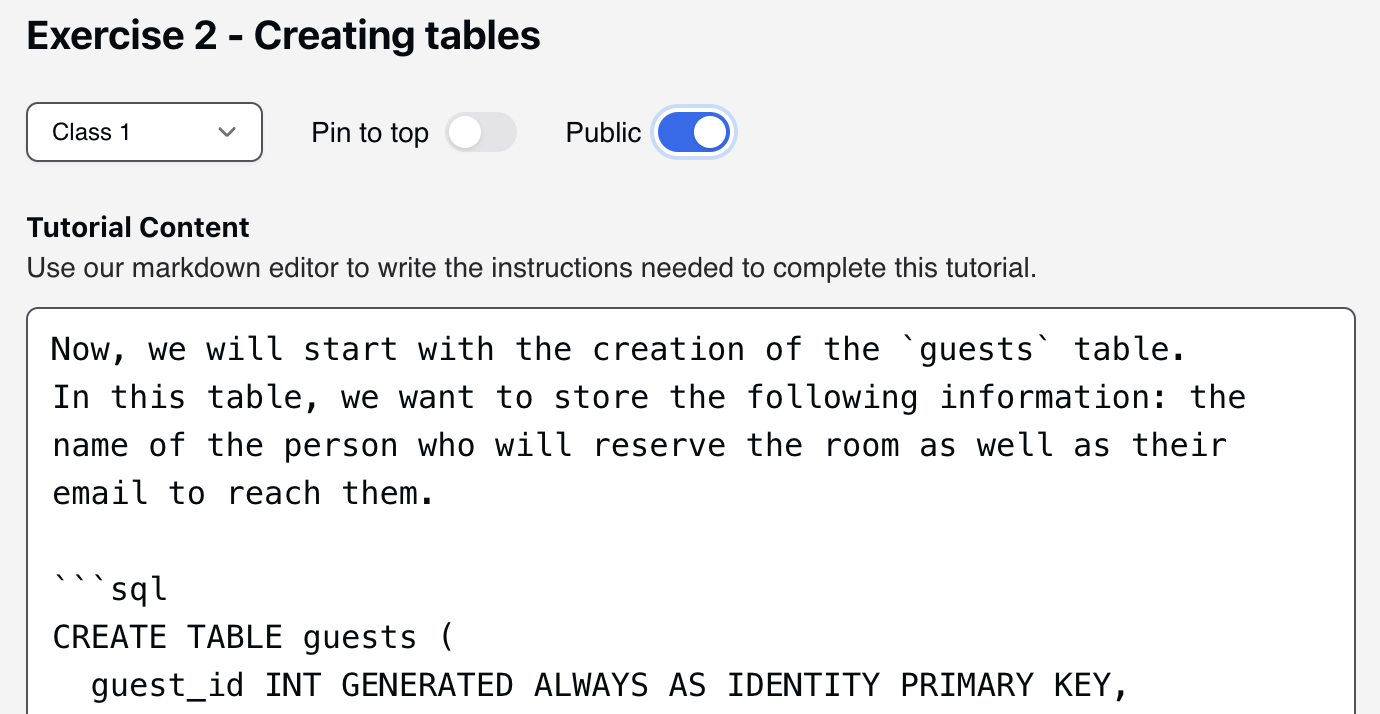
Code highlighting
You can highlight code blocks using 3 ticks for opening and closing.
```
\dx
```
If you want to specify the type of code, you can do this
```sql
CREATE TABLE guests ();
```
By default, the code blocks will show up for your tutorials to ‘copy’ and input that into the command window on the right. If you don’t want your code blocks to show up with copy, maybe you want to show an error message, adding `+example` will make the copy option disappear.
```sql+example
ERROR: relation "guests" already exists
```
Pre-loading SQL
You can have your tutorials start with preloaded content. Anything that can be loaded into Postgres through a pg_dump and restore process can be added. Or direct SQL and functions can be loaded as well. Anything you set up in this step will be loaded as the tutorial is opened by the user.
```
from database version 14.4
-- Dumped by pg_dump version 14.4

SET statement_timeout = 0;
SET lock_timeout = 0;
SET idle_in_transaction_session_timeout = 0;
SET client_encoding = 'UTF8';
SET standard_conforming_strings = on;
SET check_function_bodies = false;
SET xmloption = content;
SET client_min_messages = warning;
SET row_security = off;

SET default_tablespace = '';

SET default_table_access_method = heap;

--
-- Name: thermostat; Type: TABLE; Schema: public; Owner: postgres
--

CREATE TABLE public.thermostat (
		thetime timestamp with time zone,
		sensor_id integer,
		current_temperature numeric(3,1),
		thermostat_status text
);


ALTER TABLE public.thermostat OWNER TO postgres;

--
-- Data for Name: thermostat; Type: TABLE DATA; Schema: public; Owner: postgres
--

COPY public.thermostat (thetime, sensor_id, current_temperature, thermostat_status) FROM stdin;
2022-07-23 22:50:54.100969+00	1	73.7	off
2022-07-23 22:50:54.100969+00	2	75.2	off
2022-07-23 22:50:54.100969+00	3	77.6	off
2022-07-23 22:50:54.100969+00	4	75.0	off
2022-07-23 22:50:54.100969+00	5	72.4	off
\.
```
You can also issue SQL statements or functions that create data. For example, here's a statement that will create several thousand lines of random IoT thermostat data.
```
CREATE TABLE thermostat AS
WITH time AS (
    SELECT generate_series(now() - interval '10 days', now(), '10 minutes') thetime
),
sensors AS (
    SELECT generate_series(1,5) as sensor_id
),
temp AS (
    SELECT
        thetime,
        sensor_id,
        72 - 10 * cos(2 * pi() * EXTRACT ('hours' from thetime)/24) + random()*10 - 5 AS current_temperature
    FROM time,sensors
)
SELECT
    thetime,
    sensor_id,
    current_temperature::numeric(3,1),
    CASE
        WHEN current_temperature < 70 THEN 'heat'
        WHEN current_temperature > 80 THEN 'cool'
        ELSE 'off'
    END AS thermostat_status
FROM temp;
```
Sharing tutorials
Tutorials can either be private, so just for team members, or made public on the tutorial screen. Public tutorials will have a link that can be copied and shared.

Public tutorial links are open and available. These can be embedded into class material, web pages, or any other content that you manage. The content is not crawled or indexed by search engines.
Organizing tutorials
Tutorials can be organized by Team. Inside each team are Categories of tutorials, which will appear on the tutorial list as tags. Inside each team’s list of tutorials, they can be organized from top to bottom.
Editing tutorials
Any of the tutorial content can be edited by Managers or Admin. Click on the three dots next to the tutorial to edit.

Discord community
Want to talk about Postgres with other community members and folks using the playground. Join us on Discord.